Română





AmneziaWG VPN
Cuvinte cheie
| Cuvânt cheie | Definiție |
|---|---|
| 🛡️ AmneziaWG | Un fork al WireGuard care randomizează anteturile pachetelor, dimensiunile și timpii de transmisie pentru a contracara inspecția profundă a pachetelor, menținând aceeași criptografie dovedită. Acesta este un protocol care rulează pe serverul tău. |
| 🚀 AmneziaWG 2.0 | Versiunea principală actuală care folosește intervale de antet dinamice (în loc de valori fixe), adaugă umplutură la nivel de date (S4) și suportă pachete substitutive cu o semnătură de protocol personalizată pentru o evaziune mai puternică a DPI. |
| 🔍 Inspecția profundă a pachetelor (DPI) | O tehnică de filtrare a rețelei utilizată de ISP-uri și entități guvernamentale pentru a identifica și bloca traficul VPN prin analizarea anteturilor pachetelor, dimensiunilor și modelului de handshake. AmneziaWG este proiectat special pentru a contracara acest lucru. |
| ⚡ WireGuard | Un protocol VPN rapid și modern, cu o bază de cod mică și performanță la nivel de kernel. Este ușor identificabil de sistemele DPI datorită structurii fixe a pachetelor, ceea ce a fost abordat în AmneziaWG. |
| 🏠 VPN auto-găzduit | Un VPN pe care îl desfășori și gestionezi pe propriul server (de obicei un VPS) în loc să te abonezi la un furnizor comercial. Tu controlezi cheile, configurația și infrastructura. |
| 🐧 DKMS (Suport pentru modulele dinamice ale kernelului) | Un cadru Linux care recompilă automat modulele kernel atunci când kernelul sistemului este actualizat. Instalatorul AmneziaWG folosește DKMS pentru a construi un modul kernel de înaltă performanță. |
| 🎭 Obfuscarea | Practică de a deghiza traficul VPN pentru a-l face să pară ca trafic obișnuit de internet. AmneziaWG obfuscă la nivelul transportului prin randomizarea anteturilor, adăugarea de umplutură, trimiterea de pachete substitutive și generarea de pachete de gunoi. |
| 🔀 Tunneling divizat | O configurație de rutare în care doar traficul specific (de exemplu, site-uri blocate) trece prin VPN, în timp ce alt trafic folosește conexiunea ta directă. Utilă în țările cu cenzură parțială. |
| 🖥️ KVM vs LXC | KVM este virtualizare completă cu un kernel dedicat necesar pentru încărcarea modulelor kernel personalizate, cum ar fi AmneziaWG. LXC este virtualizare de containere care folosește kernelul partajat al gazdei și nu poate încărca module personalizate. |
| 🎪 CPS (Semnătură de protocol personalizată) | O caracteristică a AmneziaWG 2.0 care trimite pachete substitutive care imită alte protocoale (QUIC, DNS, SIP) înainte de handshake-ul real, inducând în eroare sistemele DPI prin clasificarea traficului ca normal. |
Server VPN AmneziaWG auto-deployabil — Ghid complet

AmneziaWG este un protocol conceput pentru a rezolva o problemă specifică: cum să obții viteze WireGuard atunci când rețelele la care te conectezi încearcă activ să-l blocheze? Este un fork al WireGuard creat de echipa Amnezia VPN și face ceea ce originalul nu face — randomizează stratul de transport astfel încât sistemele de inspecție profundă a pachetelor să nu-l poată identifica. Criptarea rămâne exact aceeași. Numai aspectul pachetelor în rețea se schimbă.
Peisajul larg al obfuscării VPN a fost o cursă înarmată de-a lungul anilor. Instrumente precum Shadowsocks, VLESS+Reality și OpenVPN cu obfs4 încearcă să deghizeze traficul în diverse moduri — unele ca proxy-uri, altele ca tuneluri complete, unele cu costuri de performanță ridicate. AmneziaWG ocupă o nișă specifică: este un tunel VPN complet cu performanță la nivel WireGuard și protecție DPI încorporată, toate într-un singur pachet. Și deoarece este open-source, poți să-l desfășori pe propriul server.
Dar iată problema care face acest lucru necesar. Configuri WireGuard. Funcționează perfect — rapid, curat, fiabil. Apoi, într-o zi frumoasă, se oprește. Fără mesaj de eroare, fără timeout, fără refuz de conexiune. Pachetele pur și simplu dispar. Așa arată blocarea DPI în practică: tunelul tău este încă operațional, configurația ta este încă corectă și nimic nu trece. Aceasta este realitatea în Rusia (unde WireGuard are o rată de succes de aproximativ 12%), Iran (98% pierdere de pachete) și o listă tot mai mare de țări, inclusiv China, Egipt, UAE, Turcia, Belarus, Uzbekistan, Kazahstan, Myanmar și Pakistan.

Alternativele tradiționale nu rezolvă complet această problemă. Shadowsocks este un proxy, nu un tunel VPN complet — DNS-ul tău și traficul non-TCP vor continua să scape. OpenVPN cu obfs4 funcționează, dar are un overhead de performanță de aproximativ 25%. VLESS+Reality oferă o obfuscare puternică, dar este bazat pe proxy și complex de configurat. AmneziaWG umple golul: este un tunel VPN complet cu performanță la nivel WireGuard și protecție DPI încorporată.
Acest ghid te va ghida prin desfășurarea unui server AmneziaWG 2.0 complet funcțional pe orice VPS KVM în mai puțin de 15 minute folosind un singur script de instalare comunitar. La final, vei avea un tunel VPN funcțional la care te poți conecta de pe orice dispozitiv. Pașii sunt independenți de furnizor — funcționează pe orice VPS cu acces SSH și privilegii root, fie de la AlexHost, AvaHost sau altul. Acest lucru este scris pentru utilizatori cu un nivel intermediar de abilități tehnice care sunt confortabili să lucreze cu SSH și comenzi Linux de bază.
O clarificare înainte de a începe: AmneziaWG este un protocol. AmneziaVPN este o aplicație client care se conectează la acesta. Ele sunt legate, dar distincte — ca TLS pentru browserul tău. Vei avea nevoie de o aplicație pentru a te conecta, dar protocolul este ceea ce rulează pe serverul tău.
Dar înainte de a desfășura orice, trebuie să înțelegi ce face AmneziaWG diferit de WireGuard — și de ce această diferență contează atunci când DPI te supraveghează.
Ce este AmneziaWG? (Model mental)
WireGuard este elegant în designul său. Are o bază de cod mică, folosește criptografie modernă și rulează în kernelul Linux pentru o performanță aproape nativă. Dar această eleganță are o problemă de vizibilitate: fiecare pachet WireGuard poartă aceeași structură fixă de antet, aceleași dimensiuni fixe ale pachetelor și același model de handshake. Pentru un sistem de inspecție profundă a pachetelor, tunelul WireGuard are o semnătură la fel de clară ca un cod de bare. Odată ce un dispozitiv DPI învață această semnătură, poate elimina fiecare pachet fără a bloca portul sau a închide conexiunea.
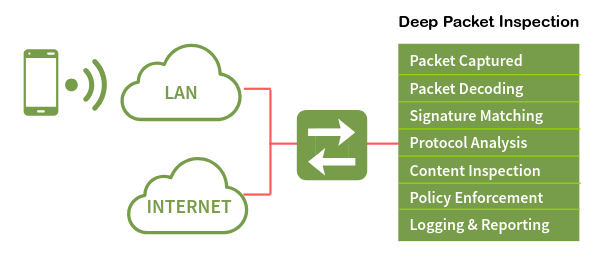
Gândește-te la asta în felul următor. WireGuard este ca un curier care poartă întotdeauna aceeași uniformă — rapid, fiabil și eficient. Dar oricine observă drumul învață să recunoască acea uniformă și poate opri curierul la orice punct de control. AmneziaWG este același curier care transportă aceleași pachete, dar își schimbă uniforma la fiecare punct de control. Aceeași persoană, aceeași marfă, un aspect complet diferit.
Istoricul versiunilor contează. AmneziaWG 1.x a introdus antete personalizate care diferă de valorile fixe ale WireGuard — acest lucru a ajutat pentru o vreme, dar sistemele DPI s-au adaptat. AmneziaWG 2.0, lansat la sfârșitul anului 2025, randomizează totul: anteturile se schimbă de la pachet la pachet, umplutura variază de la mesaj la mesaj, iar pachetele substitutive imită alte protocoale înainte de a începe handshake-ul real. Nu există o semnătură universală pentru detectare deoarece fiecare server AmneziaWG 2.0 generează propriul set unic de parametri. Fiecare server vorbește propriul său dialect.
Când toate parametrii de obfuscare sunt setați la zero, AmneziaWG se comportă identic cu WireGuard — este complet compatibil la nivel de protocol. Dar cu parametrii activi (ceea ce este setarea implicită), devine ceea ce WireGuard nu poate fi: un tunel VPN rapid pe care sistemele DPI se luptă să-l identifice.
Deci, cum exact criptează AmneziaWG traficul său? Să ne uităm la cele patru niveluri de obfuscare care fac DPI orb — și de ce acestea adaugă aproape niciun cost de viteză.
Cum se ascunde AmneziaWG de DPI (fără pierderi de viteză)
AmneziaWG 2.0 folosește patru niveluri de obfuscare care lucrează împreună. Fiecare vizează o modalitate diferită prin care sistemele DPI identifică traficul VPN. Împreună, ele fac traficul fiecărui server unic.
Antete dinamice (H1–H4)
WireGuard folosește identificatori de tip de mesaj fixați de 32 de biți:
- 1 — pentru inițiere
- 2 — pentru răspuns
- 3 — pentru răspuns cu cookie
- 4 — pentru date
Un dispozitiv DPI care scanează traficul caută pur și simplu aceste valori. AmneziaWG 2.0 înlocuiește fiecare valoare fixă cu un număr aleatoriu ales dintr-un interval specificat. Antetul de inițiere (H1) poate fi orice valoare de la 234567 la 345678. Antetul de răspuns (H2) poate fi de la 3456789 la 4567890. Aceste intervale nu se suprapun niciodată — protocolul trebuie să distingă în continuare tipurile de pachete intern — dar pentru un observator extern, nu există o singură valoare de antet la care să se agățe. Fiecare pachet arată diferit de precedentul.
Umplutură aleatoare (S1–S4)
Pachetul de inițiere al WireGuard are întotdeauna exact 148 de biți. Răspunsul său are întotdeauna exact 92 de biți. Aceste dimensiuni fixe sunt o altă amprentă. AmneziaWG adaugă umplutură aleatoare fiecărui tip de pachet: inițierea devine 148+S1 biți, răspunsul devine 92+S2 biți, răspunsul cu cookie devine 64+S3 biți, iar fiecare pachet de date primește S4 biți de umplutură. S3 și S4 sunt noi în versiunea 2.0 — iar S4 este cea mai semnificativă adăugare, deoarece afectează fiecare pachet de date, făcând analiza traficului la nivel de sesiune mult mai dificilă.
Există o constrângere critică: S1+56 nu trebuie să fie egal cu S2. Deoarece diferența de dimensiune originală între inițiere și răspuns este de 56 de biți (148−92), dacă valorile de umplutură compensează aleatoriu exact acea diferență, două pachete umplute vor ajunge la aceeași dimensiune — recreând amprenta pe care AmneziaWG încearcă să o elimine. Generatorul de parametrii al instalatorului asigură automat această constrângere.
Semnătură de protocol personalizată (I1–I5)
Înainte de a începe handshake-ul real, clientul AmneziaWG trimite până la cinci pachete substitutive care imită alte protocoale — QUIC, DNS, SIP sau modele de biți personalizate. Serverul ignoră complet aceste pachete. Așteaptă pur și simplu handshake-ul real.
- Configurare simplă: Trimite 128 de biți aleatori <r 128>.
- Configurare complexă: Trimite biți care par a iniția o conexiune QUIC (<b 0xc000000001><r 64><t>), cu un timestamp Unix.
Pentru un sistem DPI care observă începutul sesiunii, primele pachete arată ca trafic web obișnuit.
Pachete de gunoi (Jc, Jmin, Jmax)
După pachetele substitutive, clientul trimite un număr personalizabil de pachete de gunoi — zgomot pur cu dimensiuni aleatoare de la Jmin la Jmax. Aceste pachete estompează profilul de timp și dimensiune al începutului sesiunii, făcând mai greu pentru sistemele DPI să identifice unde începe handshake-ul real.
Întrebare despre viteză
Există un număr care circulă pe internet: AmneziaWG are un overhead de 65%. Această cifră este reală, dar se referă la implementarea Go în spațiul utilizatorului — nu la modulul kernel. Instalatorul comunității folosit în acest ghid construiește un modul kernel DKMS, iar modulul kernel adaugă mai puțin de 12% overhead în total — mai aproape de 3% în teste reale. Pe o rețea ne-cenzurată, ai vedea aproximativ 95 Mbps prin WireGuard și 92 Mbps prin AmneziaWG 2.0. Pe o rețea cenzurată, comparația este 92 Mbps versus zero.
Tabelul următor rezumă parametrii pe care instalatorul îi generează automat:
| Parametru | Interval generat | Valoare exemplu |
|---|---|---|
| Jc (numărul de pachete de gunoi) | 4–8 | 6 |
| Jmin (dimensiunea minimă a gunoiului) | 40–89 | 55 |
| Jmax (dimensiunea maximă a gunoiului) | Jmin+100 la Jmin+500 | 380 |
| S1 (umplutură de inițiere) | 15–150 | 72 |
| S2 (umplutură de răspuns) | 15–150, S1+56≠S2 | 56 |
| S3 (umplutură de cookie) | 8–55 | 32 |
| S4 (umplutură de date) | 4–27 | 16 |
| H1 (interval de antet de inițiere) | uint32 fără suprapunere | 234567-345678 |
| H2 (interval de antet de răspuns) | uint32 fără suprapunere | 3456789-4567890 |
| H3 (interval de antet de cookie) | uint32 fără suprapunere | 56789012-67890123 |
| H4 (interval de antet de date) | uint32 fără suprapunere | 456789012-567890123 |
| I1 (pachet CPS) | <r N> format | <r 128> |
Nu trebuie să setezi manual niciunul dintre acești parametri. Instalatorul generează valori aleatorii criptografic care respectă constrângerile de fiecare dată.
Acum că știi cum funcționează obfuscarea, să vedem cum se compară AmneziaWG cu alternativele pe care le-ai putea lua în considerare.
AmneziaWG vs Alternative — Ghid rapid de luare a deciziilor

| WireGuard | AmneziaWG 2.0 | OpenVPN+obfs4 | Shadowsocks | VLESS+Reality | |
|---|---|---|---|---|---|
| Rezistența la DPI | Scăzută | Ridicată | Medie | Medie | Foarte ridicată |
| Overhead de viteză | ~4% | <12% (~3% în condiții reale) | ~25% | ~8% | ~10% |
| Tunel VPN complet | Da | Da | Da | Nu (proxy) | Nu (proxy) |
| Rulează în kernel | Da | Da (DKMS) | Nu | Nu | Nu |
| Complexitatea instalării | Scăzută | Scăzută (cu instalator) | Ridicată | Medie | Ridicată |
| Transport | UDP | UDP | TCP/UDP | TCP | TCP |
Regulile de luare a deciziilor sunt simple:
- Nu ai DPI în țara ta? Folosește WireGuard obișnuit. Este mai ușor și are un ecosistem mai larg.
- Ai nevoie de protecție maximă împotriva DPI și nu te deranjează proxy-urile? VLESS+Reality este cea mai puternică opțiune pentru obfuscare, dar nu este un tunel complet.
- Vrei atât viteză, cât și un tunel complet cu obfuscare? AmneziaWG 2.0 este singura opțiune care oferă performanță la nivel WireGuard cu protecție reală DPI într-un tunel VPN complet.
- Folosești deja OpenVPN+obfs4 și încă funcționează? Nu este o nevoie urgentă de a schimba, dar AmneziaWG va fi vizibil mai rapid.
Acest articol se concentrează pe AmneziaWG deoarece este singurul protocol care îți oferă un tunel complet, performanță la nivel de kernel și obfuscare încorporată — toate setate cu un singur script.
Dacă AmneziaWG este alegerea potrivită pentru situația ta, iată ce ai nevoie înainte de a începe desfășurarea.
Ce ai nevoie înainte de a începe
Înainte de a rula instalatorul, asigură-te că mediul tău îndeplinește aceste cerințe:
| Cerință | Detalii | De ce |
|---|---|---|
| OS | Ubuntu 24.04 LTS (instalare curată). Ubuntu 25.10 este experimental. Debian 12/13 funcționează, dar poate necesita curl preinstalat. | Instalatorul este testat și complet suportat pe Ubuntu 24.04. |
| Specificații VPS | 1 vCore, 1 GB RAM, 25 GB stocare. Orice plan pentru 3–5$/lună este potrivit. | Instalatorul necesită ~2 GB de spațiu pe disc și ~1 GB de RAM în timpul construcției DKMS. VPN-ul funcțional folosește resurse minime. |
| Virtualizare | KVM (nu OpenVZ, nu LXC). | AmneziaWG încarcă modulul kernel prin DKMS. LXC folosește un kernel partajat al gazdei și nu poate încărca module personalizate. |
| Acces SSH | Utilizator root sau sudo cu autentificare prin parolă/cheie. | Instalatorul trebuie să ruleze ca root. |
| Port SSH | Implicit 22 sau pre-deschis în UFW dacă folosești un port non-standard. | Dacă SSH nu rulează pe portul 22 și nu l-ai deschis în prealabil, configurarea firewall-ului instalatorului te va bloca. |
| Aplicație client | Amnezia VPN >= 4.8.12.7 (toate platformele). | Opțiunile AWG 2.0 nu sunt înțelese de clienții mai vechi. Clientul standard WireGuard nu suportă deloc AWG. |
⚠️ Atenție: Containerele LXC nu sunt suportate. Dacă VPS-ul tău folosește virtualizare LXC, construcția modulului kernel DKMS va eșua. Trebuie să folosești KVM sau bare-metal. Verifică cu furnizorul tău dacă nu ești sigur.
⚠️ Atenție: Dacă SSH-ul tău rulează pe un port non-standard (orice altceva decât 22), trebuie să-l deschizi în UFW înainte de a rula instalatorul:
sudo ufw allow YOUR_PORT/tcp
Înlocuiește YOUR_PORT cu portul tău SSH real. Instalatorul include UFW cu o politică implicită — dacă portul tău SSH nu este permis, vei fi imediat blocat.
💡 Sfaturi: Așteaptă 5–10 minute după crearea VPS-ului tău înainte de a rula instalatorul. Cloud-init și procesele de inițializare în fundal pot intra în conflict cu apelurile apt-get pe care le face instalatorul.
Cu VPS-ul tău pregătit și cerințele confirmate, să desfășurăm AmneziaWG 2.0 folosind scriptul de instalare comunitar — cea mai rapidă și transparentă metodă.
Metoda 1 — Desfășurare cu Instalatorul CLI (Recomandat)
Aceasta este metoda principală de instalare. Vei descărca un script de instalare cu versiune fixată, îl vei rula ca root, vei parcurge opt pași automatizați (cu două reporniri așteptate) și vei ajunge la un server AmneziaWG 2.0 complet configurat. Instalatorul se ocupă de tot: instalarea pachetelor, compilarea modulului kernel, configurarea firewall-ului, generarea parametrilor și pornirea serviciului.
6.1 — Conectează-te la VPS-ul tău prin SSH
Deschide terminalul tău și conectează-te la serverul tău:
ssh root@<SERVER_IP>
Înlocuiește <SERVER_IP> cu adresa IP publică reală a VPS-ului tău. Dacă furnizorul tău ți-a dat un utilizator non-root, conectează-te cu acel utilizator și apoi escaladează:
ssh <username>@<SERVER_IP>
 sudo -i
Ar trebui să vezi bannerul de bun venit Ubuntu 24.04 urmat de un prompt root:
Welcome to Ubuntu 24.04 LTS (GNU/Linux 6.8.0-xx-generic x86_64)
 ...
 root@vps:~#
6.2 — Descarcă și rulează instalatorul
Descarcă scriptul de instalare, fă-l executabil și rulează-l:
wget https://raw.githubusercontent.com/bivlked/amneziawg-installer/v5.8.1/install_amneziawg_en.sh
 chmod +x install_amneziawg_en.sh
 sudo bash ./install_amneziawg_en.sh
URL-ul este fixat pe versiunea v5.8.1 — cea mai recentă lansare din aprilie 2026. Aceasta este siguranța lanțului de aprovizionare: asigură că scriptul descărcat se potrivește cu versiunea testată, chiar dacă depozitul a fost actualizat între timp.
Instalatorul începe prin a verifica sistemul tău:
============================================
 AmneziaWG 2.0 Installer v5.8.1
 ============================================
 Checking system requirements...
 OS: Ubuntu 24.04 LTS — OK
 Virtualization: KVM — OK
 RAM: 1024 MB — OK
 Disk: 25 GB free — OK
Dacă vreo verificare eșuează, instalatorul se oprește și îți spune de ce. Rezolvă problema și rulează din nou comanda.
6.3 — Parcurge solicitările instalatorului
Instalatorul este o mașină de stare cu opt pași, cu suport pentru reluare după repornire. Își salvează progresul în /root/awg/setup_state, așa că, dacă serverul repornește, trebuie doar să rulezi aceeași comandă din nou și va continua de unde a rămas.
Pasul 0: Inițializare — Instalatorul verifică OS-ul tău, tipul de virtualizare, RAM-ul și spațiul pe disc. Creează directorul de lucru /root/awg/ și setează un fișier de blocare pentru a preveni rulările paralele.
Pasul 1: Actualizare sistem și instalare pachete — Instalatorul rulează apt-get update && apt-get upgrade -y, apoi instalează AmneziaWG, DKMS, anteturile Linux, UFW, Fail2Ban, instrumentele de generare a codurilor QR și alte dependențe.
📝 Notă: Instalatorul elimină de asemenea mai multe servicii de fundal care consumă resurse pe instanțele VPS minime: snapd, modemmanager, networkd-dispatcher, unattended-upgrades, packagekit, lxd-agent-loader și udisks2. Acest lucru este intenționat și sigur.
Când Pasul 1 se finalizează, instalatorul solicită o repornire:
Reboot required. Reboot now? [y/n]:
Tastează y și apasă Enter. După ce serverul revine, conectează-te din nou prin SSH și rulează aceeași comandă:
sudo bash ./install_amneziawg_en.sh
Scriptul citește starea salvată și continuă la Pasul 2 fără a mai solicita din nou nicio întrebare.
Pasul 2: Construirea modulului kernel DKMS — Instalatorul compilează modulul kernel AmneziaWG împotriva kernelului tău curent și îl înregistrează cu DKMS pentru reconstrucție automată la actualizările viitoare ale kernelului:
Step 2: Building AmneziaWG kernel module via DKMS...
 Creating symlink /var/lib/dkms/amneziawg/2.0/source -> /usr/src/amneziawg-2.0
 DKMS: add completed.
 Kernel preparation completed.
 Building module:
 make -C /lib/modules/6.8.0-xx-generic/build M=/var/lib/dkms/amneziawg/2.0/build modules
 DKMS: build completed.
 DKMS: install completed.
Se solicită o a doua repornire. Tastează y și apasă Enter.
📝 Notă: Două reporniri în timpul instalării sunt normale și așteptate. Prima încarcă noile anteturi ale kernelului, a doua activează modulul kernel nou construit. Scriptul salvează starea între reporniri — nimic nu se pierde.
După a doua repornire, conectează-te din nou și rulează instalatorul încă o dată:
sudo bash ./install_amneziawg_en.sh
Pasul 3: Verificarea modulului post-repornire — Scriptul verifică dacă modulul kernel este încărcat (lsmod | grep amneziawg). Dacă construcția DKMS a eșuat din orice motiv, se revine la implementarea Go în spațiul utilizatorului cu un avertisment despre overhead-ul mai mare.
Pasul 4: Configurarea firewall-ului — UFW este activat cu o politică implicită de respingere a intrărilor. Instalatorul adaugă o regulă de limitare a ratei SSH pe portul 22, deschide portul tău VPN pentru trafic UDP și configurează regulile de rutare pentru interfața awg0.
Pasul 5: Descărcarea scripturilor de gestionare — Scripturile de gestionare a clientului (manage_amneziawg_en.sh și awg_common_en.sh) sunt descărcate în /root/awg/ cu permisiuni doar pentru proprietar (700). Acestea sunt de asemenea fixate pe versiunea v5.8.1.
Pasul 6: Configurare interactivă — Instalatorul acum pune patru întrebări:
- Port UDP (implicit: 39743, interval 1024–65535). Implicit este un port înalt aleator — păstrează-l decât dacă ISP-ul tău este cunoscut că blochează porturile UDP înalte.
- Subnetul tunelului (implicit: 10.9.9.1/24). Aceasta este rețeaua ta internă VPN. Serverul primește .1, clienții primesc .2 până la .254, suportând până la 253 de clienți.
- Dezactivează IPv6 (implicit: Y). Recomandat — dezactivarea IPv6 împiedică traficul să scape în afara tunelului pe rutele IPv6.
- Mod de rutareAlege 1 pentru tot traficul, 2 pentru Lista Amnezia + DNS (recomandat), sau 3 pentru rețele personalizate. Modul 2 rutează doar intervalele IP publice blocate și DNS prin VPN, menținând accesul la rețeaua locală rapid și direct.
💡 Sfaturi: MTU-ul este setat la 1280 în mod implicit. Aceasta este MTU-ul minim IPv6 și este critic pentru rețelele mobile și celulare. iOS este strict în ceea ce privește Descoperirea MTU pe cale, iar rețelele celulare au adesea un MTU eficient sub 1420, valoarea implicită a WireGuard. Lasă-l la 1280.
Pasul 7: Pornirea serviciului — Instalatorul generează configurația serverului în /etc/amnezia/amneziawg/awg0.conf, creează două configurații implicite pentru clienți (my_phone și my_laptop) în /root/awg/, generează coduri QR și pornește serviciul awg-quick@awg0 systemd.
Pasul 8: Finalizare — Vei vedea mesajul de succes:
============================================
 AmneziaWG 2.0 installation and configuration completed SUCCESSFULLY!
 ============================================
Instalatorul generează automat toți parametrii de obfuscare AmneziaWG 2.0. Nu trebuie să te atingi de ei. Fiecare server primește un set unic de valori — nu există o amprentă universală pentru sistemele DPI de detectat.
6.4 — Gestionarea clienților după instalare
Scriptul de gestionare de la /root/awg/manage_amneziawg.sh se ocupă de toate operațiunile ciclului de viață al clientului. Iată comenzile esențiale:
Adaugă un nou client:
sudo bash /root/awg/manage_amneziawg.sh add my_desktop
Aceasta generează un fișier .conf, un cod QR și un fișier .vpnuri pentru noul client. Configurația serverului se reîncarcă — nu este necesară repornirea serviciului.
Adaugă un client temporar cu expirare automată:
sudo bash /root/awg/manage_amneziawg.sh add guest --expires=7d
Un job cron verifică la fiecare cinci minute și elimină automat clientul când expiră. Configurația, cheile și intrarea serverului sunt toate curățate.
Listează toți clienții:
sudo bash /root/awg/manage_amneziawg.sh list
Clients:
  my_phone     (10.9.9.2/32)
  my_laptop    (10.9.9.3/32)
  my_desktop   (10.9.9.4/32)
  guest        (10.9.9.5/32) [expires in 6d 23h]
Adaugă flag-ul -v pentru detalii suplimentare, inclusiv chei publice și date de creare.
Elimină un client:
sudo bash /root/awg/manage_amneziawg.sh remove guest
Verifică starea completă a serverului:
sudo bash /root/awg/manage_amneziawg.sh check
Aceasta arată starea serviciului, portul deschis, toți parametrii AWG 2.0, starea modulului kernel, starea UFW și starea Fail2Ban într-o singură vedere.
Vezi statistici de trafic pe client:
sudo bash /root/awg/manage_amneziawg.sh stats
Client          Received        Sent            Latest handshake
───────────────────────────────────────────────────────────────────
my_phone        1.24 GiB        356.7 MiB       2 minutes ago
my_laptop       892.3 MiB       128.4 MiB       15 seconds ago
my_desktop      0 B             0 B             (none)
Crează un backup:
sudo bash /root/awg/manage_amneziawg.sh backup
Aceasta creează un arhivă comprimată în /root/awg/backups/ conținând configurația serverului tău, configurațiile clienților, cheile și datele de expirare.
📝 Notă: Comenzile add și remove folosesc awg syncconf pentru reîncărcare. Configurația serverului se actualizează instantaneu fără a reporni serviciul. Folosește restart doar atunci când schimbi parametrii de server, cum ar fi portul sau MTU.
6.5 — Verifică dacă serverul rulează
Parcurge aceste verificări pentru a confirma că totul este operațional:
Verifică serviciul systemd:
sudo systemctl status awg-quick@awg0
● awg-quick@awg0.service - AmneziaWG Quick via awg-quick(8) for awg0
     Loaded: loaded (/lib/systemd/system/awg-quick@.service; enabled)
     Active: active (exited) since Thu 2026-04-09 14:32:01 UTC
Verifică starea și parametrii AmneziaWG:
sudo awg show awg0
Verifică firewall-ul:
sudo ufw status verbose
Status: active
Default: deny (incoming), allow (outgoing)
22/tcp                     LIMIT IN    Anywhere
39743/udp                  ALLOW IN    Anywhere
Verifică Fail2Ban:
sudo fail2ban-client status sshd
Status for the jail: sshd
|- Filter
|  |- Currently failed: 0
|  `- Total failed: 0
`- Actions
   |- Currently banned: 0
   `- Banned IP list:
Verifică modulul kernel DKMS:
dkms status
amneziawg/2.0, 6.8.0-xx-generic, x86_64: installed
Dacă toate cele cinci verificări trec, serverul tău AmneziaWG 2.0 este în funcțiune și gata să accepte conexiuni.
Serverul tău este în funcțiune și verificat. Dacă preferi o abordare bazată pe GUI în loc de terminal, iată metoda alternativă folosind aplicația AmneziaVPN.
Metoda 2 — Desfășurare cu aplicația AmneziaVPN (Alternativă)
Aplicația desktop AmneziaVPN poate instala automat AmneziaWG pe serverul tău prin SSH. Folosește același script de instalare de bază ca metoda CLI, dar învăluie totul într-o interfață ghidată. Aceasta este ideală dacă vrei o experiență de instalare fără intervenție.
- Descarcă AmneziaVPN de pe amnezia.org/en/downloads. Este disponibil pentru Windows, macOS, Linux, Android și iOS.
- Deschide aplicația și fă clic pe ➕ (iconița plus) sau Începe.
- Selectează „VPN auto-găzduit” din opțiunile prezentate.
- Introdu acreditivele serverului tău:
- Adresa IP a serverului (și portul dacă SSH nu este pe 22, de exemplu, 203.0.113.10:2221)
- Numele de utilizator SSH (de exemplu, root)
- Parola sau cheia privată SSH
- Alege tipul de instalare:
- Automat — instalează doar AmneziaWG (recomandat)
- Manual — alege un protocol specific din listă
- Fă clic pe „Instalează” — aplicația se conectează la serverul tău prin SSH și rulează instalarea automat. Vei vedea un indicator de progres.
- După instalare, aplicația creează un profil de conexiune VPN gata de utilizare.
Note post-instalare:
- Aplicația instalează AmneziaWG cu un port aleator în mod implicit. Unele ISP-uri blochează UDP pe porturi înalte. Aplicația recomandă schimbarea la un port sub 9999 (cum ar fi 585 sau 1234). Pentru a-l schimba: fă clic pe iconița de setări de lângă conexiune → tab-ul Management → schimbă numărul portului.
- Dacă serverul tău are deja software Amnezia instalat, fă clic pe „Sari peste configurare” în timpul creării conexiunii, apoi folosește „Verifică serverul pentru servicii Amnezia instalate anterior” în tab-ul Management.
Iată cum se compară cele două metode:
| Aspect | Instalator CLI | Aplicația AmneziaVPN |
|---|---|---|
| Control | Complet — vezi fiecare pas, poți personaliza | Limitat — aplicația se ocupă de tot |
| Vizibilitate | Transparent — toate comenzile sunt vizibile | Opac — rulează în fundal |
| Flexibilitate | Rutare personalizată, punct final, steaguri | Folosește doar valorile implicite |
| Ușurința utilizării | Necesită familiaritate cu SSH | Zero muncă în terminal |
| Gestionare | Completmanage_amneziawg.sh suite | Gestionare bazată pe aplicație doar |
| Cel mai bine pentru | VPS-uri neadministrate, depanare | Configurare rapidă, experiență ghidată |
Indiferent dacă ai folosit CLI sau aplicația, serverul tău este gata. Acum să conectăm primul tău dispozitiv.
Conectarea primului client
După instalare, ai trei modalități de a importa configurația clientului în aplicația Amnezia VPN. Alege-o pe cea care se potrivește dispozitivului tău.
Metoda A: Cod QR (Mobil)
Instalatorul a generat un cod QR în /root/awg/my_phone.png. Descarcă-l pe computerul tău:
scp root@<SERVER_IP>:/root/awg/my_phone.png .
Deschide fișierul PNG pe ecranul tău. Pe telefonul tău, deschide aplicația Amnezia VPN, apasă „Adaugă VPN” → „Scanează cod QR” și îndreaptă camera către codul QR de pe ecranul tău. Conexiunea se importă automat.
Metoda B: vpn:// URI (Client Amnezia)
Afișează URI-ul comprimat pe serverul tău:
cat /root/awg/my_phone.vpnuri
Copiază întreaga șir vpn://… și trimite-l ție — prin Telegram, email sau o aplicație de note. Pe telefonul tău, deschide aplicația Amnezia VPN, apasă „Adaugă VPN” → „Lipește din clipboard”. Configurația se importă într-un singur pas.
URI-ul este o versiune comprimată zlib, codificată Base64 a întregului fișier de configurare. Este compact și conceput pentru partajare rapidă.
Metoda C: Fișier .conf (Desktop/Windows)
Descarcă fișierul de configurație:
scp root@<SERVER_IP>:/root/awg/my_phone.conf .
Deschide clientul AmneziaWG pentru Windows sau aplicația AmneziaVPN desktop, fă clic pe „Importă tunel(e) din fișier” și selectează fișierul .conf.
Verifică conexiunea
Odată conectat, verifică dacă tunelul îți rotește traficul prin server:
curl ifconfig.me
Ieșirea ar trebui să arate adresa IP publică a serverului tău, nu a ta locală: 203.0.113.1
Pentru mai multe detalii, inclusiv locația geografică a serverului:
curl -s https://ipinfo.io/json
{
  "ip": "203.0.113.1",
  "city": "Amsterdam",
  "region": "North Holland",
  "country": "NL",
  ...
}
⚠️ Atenție: Clientul standard WireGuard nu funcționează cu configurațiile AmneziaWG 2.0. Trebuie să folosești aplicația Amnezia VPN (versiunea 4.8.12.7 sau mai recentă) sau un client nativ AmneziaWG (versiunea 2.0.0 sau mai recentă pe Windows/Android/iOS).
⚠️ Atenție: Dacă vezi „Cheie invalidă: s3” pe Windows, clientul tău AmneziaWG pentru Windows este învechit (versiunea sub 2.0.0). Actualizează la versiunea 2.0.0+ sau schimbă la aplicația Amnezia VPN.
💡 Sfaturi: Dacă ești conectat, dar nu ai internet, verifică dacă configurația clientului tău are MTU = 1280 în secțiunea [Interfață]. Aceasta este cea mai comună cauză a „handshake-ului reușit, dar fără trafic” pe rețelele mobile.
Tunelul tău VPN funcționează. Iată ce să faci de aici pentru a obține cele mai bune rezultate din configurația ta.
Ce urmează — Extinderea configurației tale
Acum ai un tunel VPN rezistent la DPI care rulează pe propriul tău server, sub controlul tău, cu viteză de nivel WireGuard. Moartea silențioasă a pachetelor care a ucis conexiunea ta WireGuard nu mai este o problemă — traficul tău nu arată ca nimic ce un sistem DPI poate identifica fiabil.
Iată cele mai utile lucruri pe care le poți face în continuare:
- Adaugă clienți pentru familia sau echipa ta — folosește scriptul de gestionare pentru a genera configurații pentru fiecare dispozitiv care are nevoie de acces.
- Configurează tunneling divizat dacă nu ai nevoie de rutare completă prin VPN — menține traficul local rapid și reduce lățimea de bandă pe VPS-ul tău.
- Fă backup configurațiilor tale — rulează comanda de backup și stochează arhiva undeva în siguranță. Dacă serverul tău va necesita vreodată reconstrucție, aceasta este ceea ce te salvează de la a începe de la zero.
Configurează tunneling divizat dacă nu ai nevoie ca tot traficul să fie rutat prin VPN. Acest lucru este deosebit de util în țările cu cenzură parțială — rutează doar site-urile blocate prin tunel și menține traficul local direct:
sudo bash /root/awg/manage_amneziawg.sh modify my_phone AllowedIPs "192.168.1.0/24,10.0.0.0/8"
Schimbă DNS-ul clientului tău dacă preferi rezolvatori diferiți:
sudo bash /root/awg/manage_amneziawg.sh modify my_phone DNS "8.8.8.8,1.0.0.1"
Ajustează PersistentKeepalive dacă ești pe o configurație NAT agresivă. Valoarea implicită de 33 de secunde menține sesiunea UDP prin NAT — scăderea acesteia la 25 poate ajuta pe rețelele care elimină rapid sesiunile UDP inerte:
sudo bash /root/awg/manage_amneziawg.sh modify my_phone PersistentKeepalive 25
Instalează pe routerul tău pentru acoperire pe întreaga rețea. AmneziaWG este suportat pe routerele Keenetic prin AWG Manager și pe routerele ASUS care rulează Asuswrt-Merlin prin AmneziaWG pentru Merlin.
Fă backup configurației tale acum, înainte de a schimba ceva:
sudo bash /root/awg/manage_amneziawg.sh backup
Dacă trebuie vreodată să migrezi pe un nou server, rulează o instalare proaspătă și apoi:
sudo bash /root/awg/manage_amneziawg.sh restore
 sudo bash /root/awg/manage_amneziawg.sh regen
Comanda restore readuce configurațiile și cheile tale, iar regen actualizează configurațiile clienților cu noua adresă IP a serverului.
Pentru documentație mai detaliată, documentele oficiale Amnezia sunt disponibile la docs.amnezia.org și comunitatea este activă pe Telegram.
Dacă cauți un VPS fiabil pentru a găzdui serverul tău AmneziaWG — sau ai nevoie să scalezi cu puncte de acces suplimentare pentru membrii echipei — AvaHost oferă virtualizare KVM cu acces complet root, stocare NVMe și suport Ubuntu 24.04 pe care această configurație îl necesită. Infrastructura lor este construită special pentru tipul de desfășurări auto-găzduite pe care acest ghid le acoperă.
Postări conexe