English





Using the basename Command in Bash Scripts
Using the basename Command in Bash Scripts
In Bash scripting, one of the most common tasks is manipulating file paths—especially when you want to extract just the file name from a full path. That’s where the basename command comes in. While seemingly simple, basename has powerful use cases when used correctly in more complex scripts, automation tools, hosting services, and CI/CD environments.
What Is basename?
The basename command strips the directory path and optionally removes a file extension, leaving only the base name (the final component of a file path).
🔧 Basic Syntax:
✅ Simple Examples:
basename /home/user/docs/report.pdf

basename /home/user/docs/report.pdf .pdf

Why Use basename in Scripts?
Here are just a few examples of real-world scripting needs:
Logging: Extract the name of a log file being processed.
Archiving: Append only the filename to a compressed archive.
Automation: Process batches of files and generate output filenames.
Pipelines: Extract file names in CI/CD steps.
Practical Use Cases in Bash Scripts
📁 1. Looping Over Files with Logging
for file in /var/log/*.log; do
 name=$(basename "$file" .log)
 echo "Processing $name"
 # Add further commands like gzip "$file" or tail -n 100
 done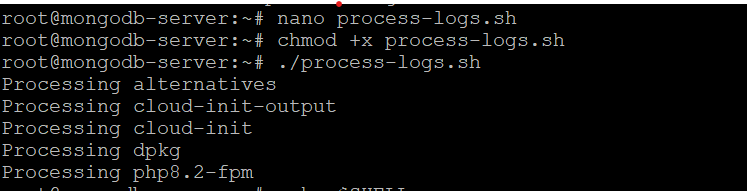
This script loops over .log files, extracts the name without extension, and logs each action. basename simplifies filename handling without complex string slicing.
📂 2. Using basename for Dynamic File Paths
Let’s say you’re receiving full paths from user input or another process:
#!/bin/bash
 input_path="$1"
 filename=$(basename "$input_path")
 echo "The file name is: $filename"

Using basename in your script ensures flexibility when working with dynamic file paths, especially in environments like a Linux VPS where logs, config files, and backups may reside in different directories. This makes your script robust regardless of whether it’s passed a full path like /var/log/syslog or a relative file like ./config.txt.
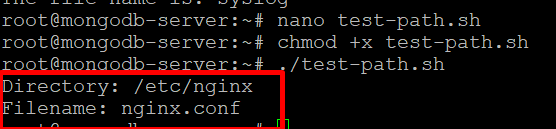
🧪 3. Combining basename with dirname
Use them together to isolate path elements:
#!/bin/bash
 path="/etc/nginx/nginx.conf"
 echo "Directory: $(dirname "$path")"
 echo "Filename: $(basename "$path")"
Removing File Extensions with basename
If you want to remove known extensions:
basename report-final.txt .txt
⚠️ Note: This only works if the suffix matches exactly. So .txt works, but .TXT or .tar.gz won’t unless explicitly specified.
For multiple extensions, combine basename with other tools:
file="/tmp/data/archive.tar.gz"
 filename=$(basename "$file")
 clean_name=${filename%%.*}
 echo "$clean_name"
 # Output: archive
Or:
basename vs Parameter Expansion
While basename is intuitive, it spawns a subprocess. For performance-critical scripts or large loops, prefer pure Bash alternatives:
Bash Native Equivalent:
Remove extension with native Bash:
✅ Faster than calling external basename.
Example: Renaming Files in Bulk
Let’s say you want to prefix all .jpg files with today’s date:
Related Posts